
This section provides administrators with information on configuring the tracking of user events.
To carry out the configuration, proceed as follows:
-
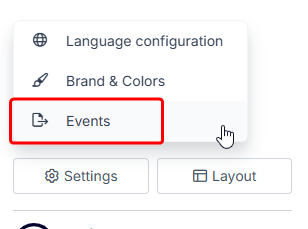
Select the “Settings” button at the bottom of the left-hand navigation bar.
-
Then select “Events” from the pop-up window that appears.
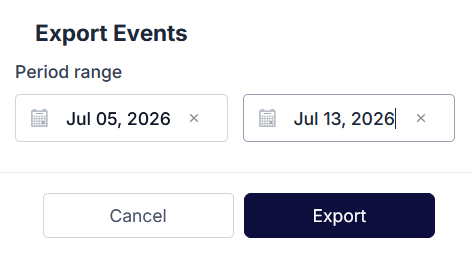
The “Export Events” dialogue box appears.
-
Configure your settings in this dialogue box. Use the built-in calendars to set the start and end dates for event tracking.
-
Finally, click the “Export” button to export the data to an Excel file.
The Excel file containing the events is generated.
Information about the Excel file:
For the specified time period, the first tab of the Excel file for user events displays the columns “UUID” (Keycloak), “TYPE” (currently only “LOGIN”), “DATETIME” and “SOURCE” (Desktop or Mobile).
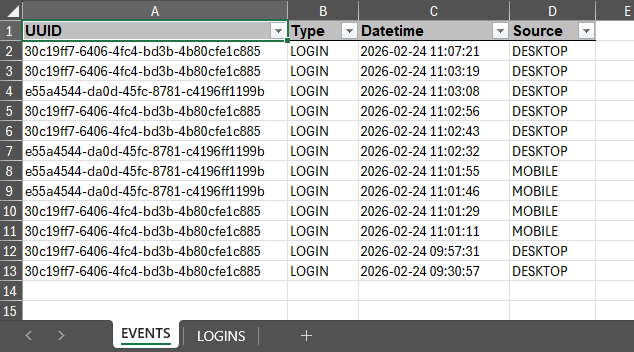
On the second tab of the Excel file, you can see a summary of the login details for each user (“UUID”).
