
In this section, you will find information on configuring the PDF export for the “Positions” report.
To carry out the configuration, proceed as follows:
-
Select the “Settings” button at the bottom of the left-hand navigation bar.
-
Then, in the pop-up window that appears, select “Reporting Options”.
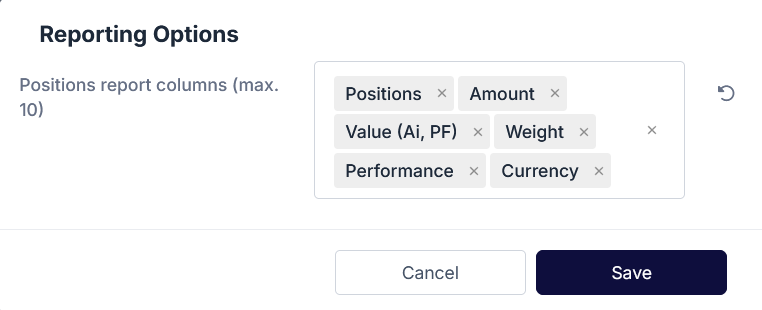
The “Reporting Options” dialogue box appears.
-
Make your adjustments in this dialogue box.
-
Remove the columns from the Positions report that you do not want to appear in the PDF.
-
Add the columns you want. To do this, click inside the window and select the columns you want to display from the menu that appears.
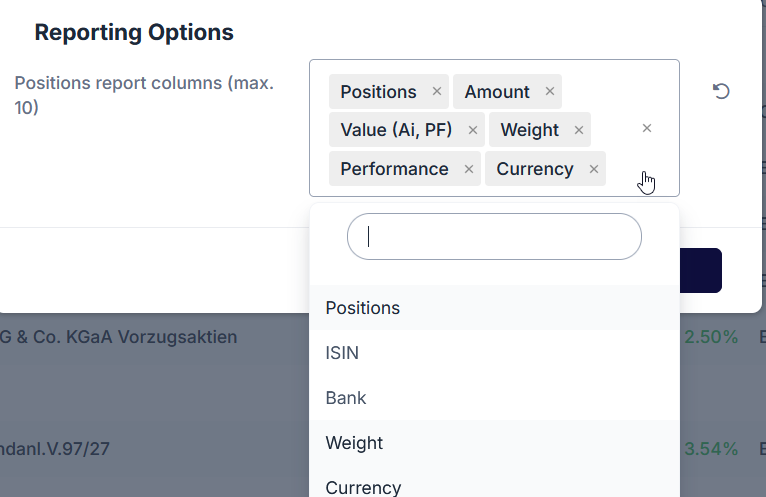
Please note that you can select a maximum of 10 columns.
-
Finally, confirm your settings by clicking the “Save” button.
The PDF settings will be saved.

Select this icon to quickly reset any changes to the default settings.